See how everyday work fits together. Choose a walkthrough and follow it at your own pace. Recordings use fictional customers.
Recorded product walkthrough
Plan your day ahead
Today’s jobs, customer totals and pending requests in one place.
Implemented product preview with fictional businesses and customers. Deployment and configuration determine availability. Delivery shown in demonstrations is simulated.
What happens in this walkthrough
Review the dashboard totals.
Look through today’s work.
Open your customer list.
Recorded product walkthrough
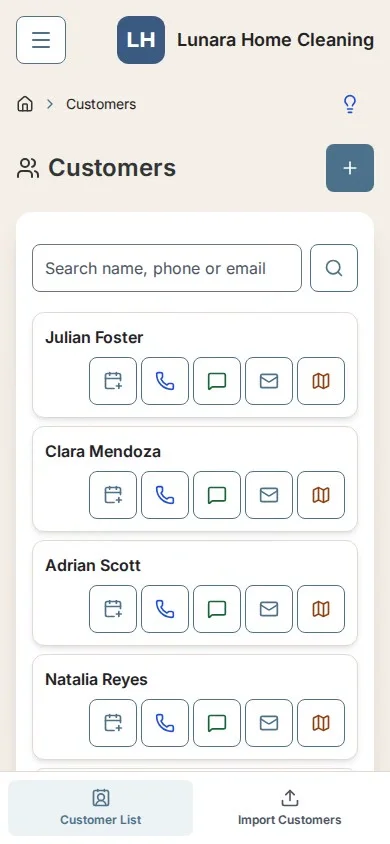
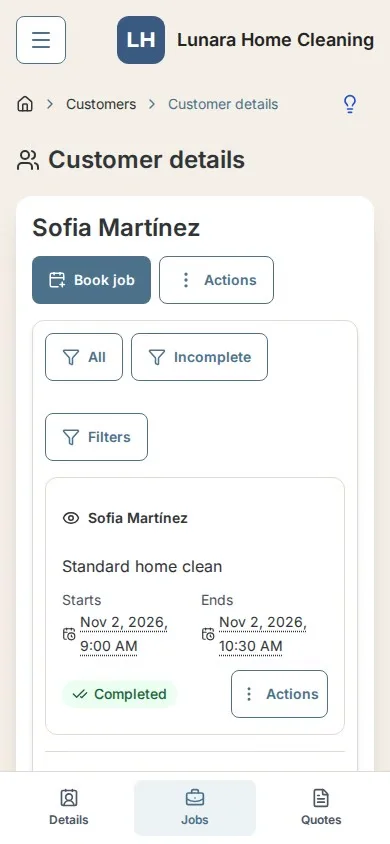
All your customers at the palm of your hand
Keep contact details, useful notes and previous visits together.
Implemented product preview with fictional businesses and customers. Deployment and configuration determine availability. Delivery shown in demonstrations is simulated.
What happens in this walkthrough
Open a customer and review their contact details.
Read a note and save a new one.
Review their previous jobs.
Recorded product walkthrough
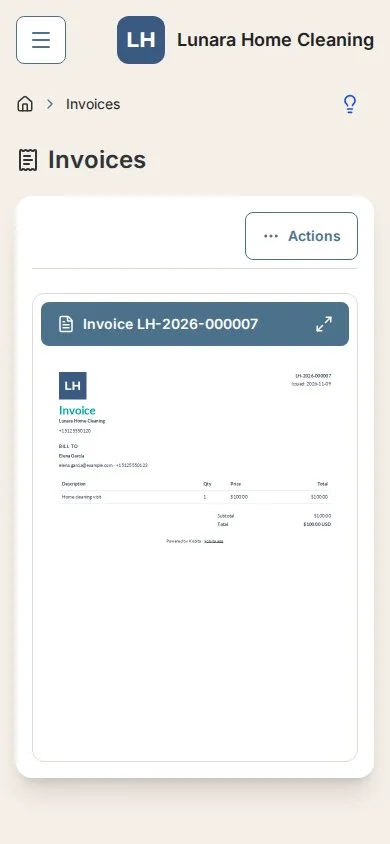
Someone said invoicing?
Describe the work, confirm prices and generate a document you can download. Sending is a separate action.
Implemented product preview with fictional businesses and customers. Deployment and configuration determine availability. Delivery shown in demonstrations is simulated.
What happens in this walkthrough
Choose a customer and add the invoice lines.
Review and explicitly generate the invoice.
Download its PDF or HTML document.
Recorded product walkthrough
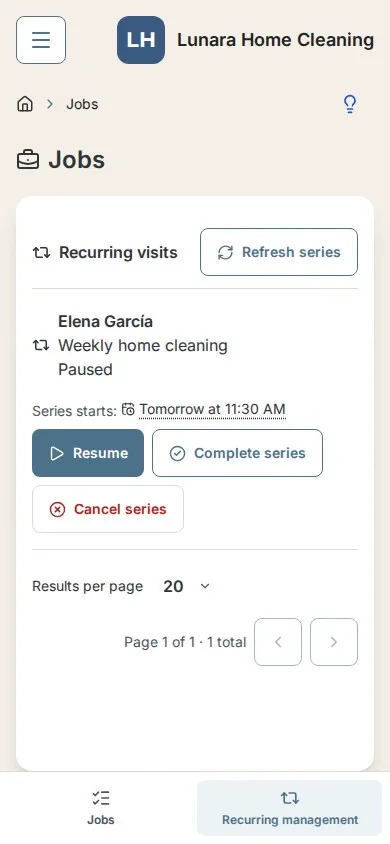
Recurrent visits? Kobita can do that.
Create a recurring schedule and keep future visits organized. Recurrence requires Plus or higher.
Implemented product preview with fictional businesses and customers. Deployment and configuration determine availability. Delivery shown in demonstrations is simulated.
What happens in this walkthrough
Choose the customer and describe the visit.
Set the recurring schedule.
Save the series and review its status.
Recorded product walkthrough
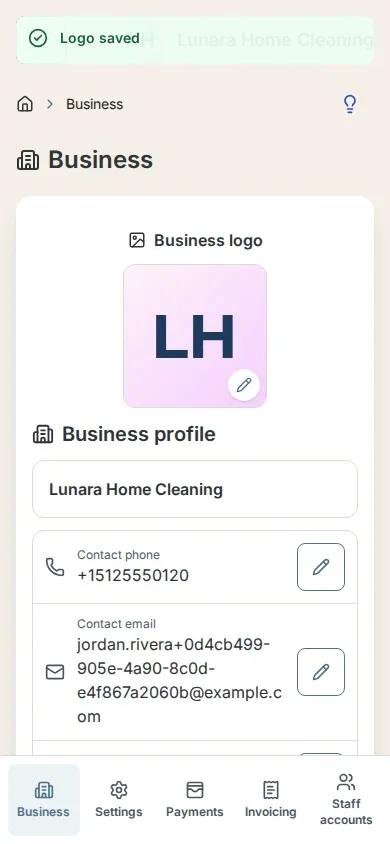
Create your own logo
All plans can upload a logo or create a monogram with fonts, initials, backgrounds and separate light or dark lettering. Current branding appears on newly generated documents and public business pages.
Implemented product preview with fictional businesses and customers. Deployment and configuration determine availability. Delivery shown in demonstrations is simulated.
What happens in this walkthrough
Open the business logo editor.
Choose letters, font and colors.
Save and verify the business preview.
More ways Kobita helps
Describe your services
Recorded product walkthrough
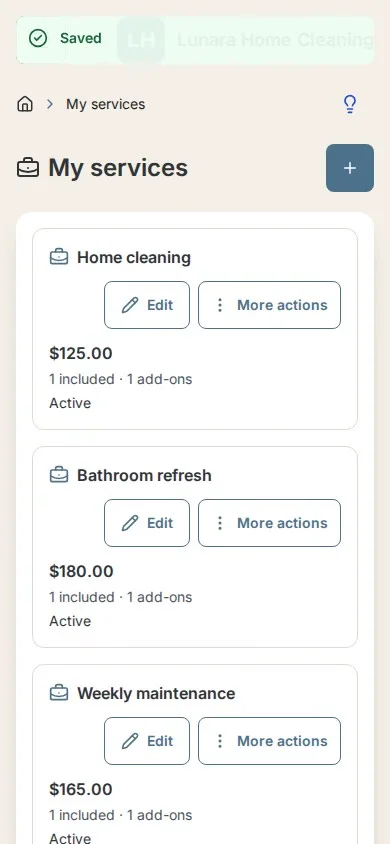
Describe your services
Start with a name and price. Add included items and optional extras when useful.
Implemented product preview with fictional businesses and customers. Deployment and configuration determine availability. Delivery shown in demonstrations is simulated.
What happens in this walkthrough
Name the service and set its base price.
Add an optional included item and extra.
Save the service and verify its scope.
Product preview
See the work. Keep track of the money.
These features are implemented in the local preview. Production availability has not been confirmed. The product tour includes fictional demonstrations of these workflows.
Reports and manual payments
Owner-only reports and CSV export are included on every plan in the implemented preview. Large totals show the count and amount for the full selected period, with currencies kept separate.
Completed and paid jobs by week, month or year, custom date ranges, outstanding balances, upcoming workload, top customers, monthly trends and quote conversion.
Record a full job settlement with an amount and date, independently of completion. Linked nonvoid invoices synchronize with the receipt. These are manual records, not bank-verified payments; partial payments and refunds are not included.
Quick filters bring unpaid invoices and incomplete jobs into view.
Your social links, in one place
Plus, Pro and Elite can save up to ten HTTPS links with predefined platform names in Business Settings, with separate switches for customer request forms and mini websites. Mini websites still require Pro or Elite.
Enabled social links appear in a footer below a divider on customer request pages and mini websites, using the same platform colors as the selector. Empty or hidden lists show no social footer.
Request-form changes apply after saving. Website additions and edits follow review and publication; the published links remain until the replacement is approved. Disabling display or losing plan eligibility hides public links immediately.
Cash App support · All plans
Add your Cash App username to Kobita.
Share it with customers, with a quick QR code on your dashboard.
Add the link and QR code to your mini website.
Use your own Cash App account and enter the correct username. Kobita only shares an external link; payments happen directly through Cash App. Kobita does not process or verify payments.
Mini website link and QR: eligible Pro/Elite plans, opt-in and approval. Notifications depend on plan and messaging settings.
Cash App is a trademark of Block, Inc. Kobita is not affiliated with or endorsed by Cash App.
App feature preview. Public availability is not yet confirmed.
Service updates, not text conversations
Kobita currently supports predefined SMS updates only. Messages use templates for specific service events, such as being on the way, running late or completing a job. Templates may insert relevant details such as the business name, appointment time or estimated arrival.
Kobita does not currently provide regular text conversations, a custom message composer or general purpose SMS messaging. Users cannot write arbitrary messages for Kobita to send.
Customer SMS requires explicit customer consent, an eligible plan, enabled delivery and available segment allowance. Delivery is not guaranteed. Withdrawal and suppression rules continue to apply.
A shortcut that opens your device’s texting application uses your own phone service. It is not a message sent through Kobita.
Agree on the work
Create a quote, download its PDF and explicitly turn an accepted agreement into a scheduled job.
Choose the customer and describe the work.
Save the quote and download its PDF.
Record acceptance and explicitly create the job.
See the schedule your way
Follow the daily agenda on mobile, or explore Month, Week and Day on desktop. Plus, Pro and Elite owners can create a subscription link from Schedule or Business Settings and add it through Google Calendar on desktop using Other calendars → From URL. Updates flow from Kobita to Google on Google’s refresh schedule. This recording shows the in-app calendar.
Open the populated schedule.
Move between dates or calendar views.
Open a job to see its details.
Spot overlapping jobs
Review a scheduling conflict before explicitly deciding to keep both appointments.
See the existing appointment.
Review the overlap warning.
Choose Create anyway and check both saved appointments.
From request to scheduled work
A customer submits the public form. The owner reviews that same request, creates the customer and schedules the job.
Watch the customer complete the request form.
Review the request and create the customer record.
Choose Create job and save the appointment.
Your business website
Edit and preview your website with Pro or Elite. The public scene shows a separately approved revision; human review happens outside this recording.
Edit the introduction and preview the draft.
Save the draft for review.
Explore the approved public website.
Build your team
Create a team, add a roster contact and choose a leader.
Create a named team.
Add an existing roster contact.
Choose a leader and review the saved team.
Share the team’s working day
Choose recipients and send through simulated email, then view the unlocked team agenda. Access links and PINs are excluded.
Review privacy options and choose the team leader.
Explicitly send the agenda through simulated email.
Open the separate team view and refresh the agenda.
Complete business story
Follow a service from business setup and a customer request to a completed job and invoice. All email delivery shown is simulated.
Review business settings and the logo, then receive a customer request.
Create the customer, schedule the job and mark it completed after the visit.
Generate the invoice and explicitly send its email through the simulated delivery workflow.
Keep customers informed
Predefined updates only. Demonstration delivery is simulated, not a real SMS.
Choose an available predefined update.
Check customer consent and delivery availability.
Send only when every required check allows it.
Owner reports and CSV export
Included on every plan: review full-period totals, paid and completed work, balances and trends. These are operational records, with currencies kept separate.
Choose a report and date range.
Read the full-result totals.
Download the matching CSV.
Manual payments and quick filters
Record a full job settlement independently of completion, correct a mistaken record, and find incomplete work. Linked invoices represent the same receipt. This is not bank-verified payment processing.
Record the amount and date received.
Review the payment in reports.
Correct a record and filter incomplete jobs.
Social links and public footers
Plus and higher can configure social links for request forms. Pro and Elite mini websites retain their review and publication requirements. Visibility can be disabled at any time.
Choose a platform and HTTPS address.
Save request-form visibility.
See the colored footer on a fictional public request page.
Calendar subscription management
Plus, Pro and Elite owners can create and revoke a private read-only calendar link. Add it to Google Calendar on desktop; Google controls refresh timing. The private URL is hidden in this recording.